

Inkscape setup guide
This guide shows how to set up Inkscape for Lucide icons.
Set up the canvas
Inkscape creates new documents with a default canvas size. Change it to 24 × 24 pixels:
- Open the Document Properties dialog with
File > Document Properties. - On the Page Size tab, under Custom Size, set units to
pxand set width and height to24.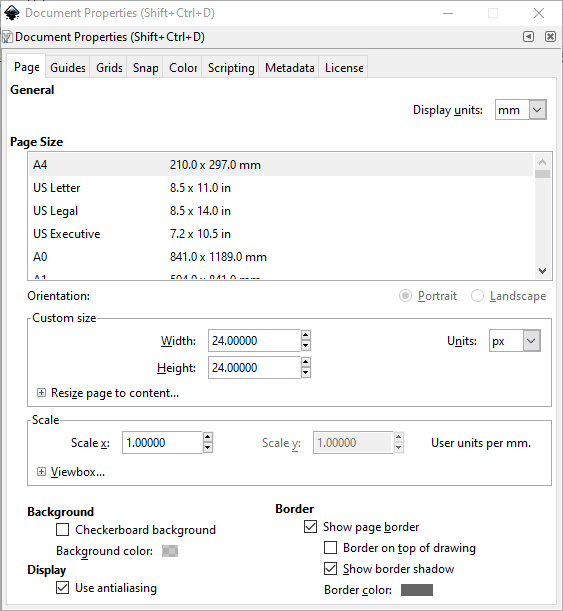
- On the Grid tab, select
Rectangular Gridand click New Grid.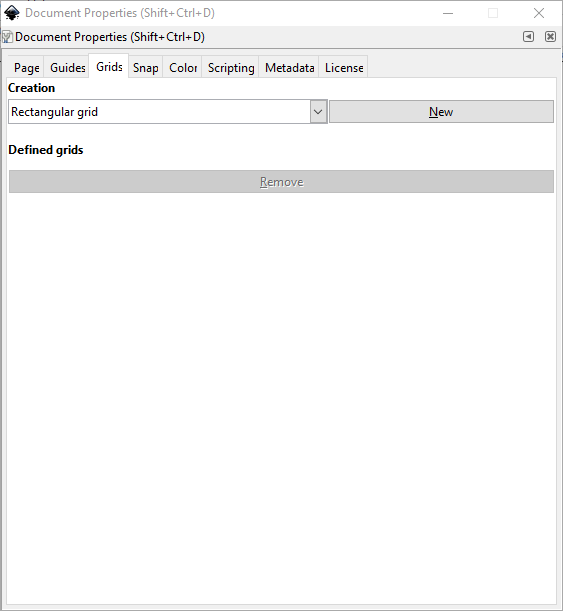
- Set grid units to
px, then setSpacing XandSpacing Yto1.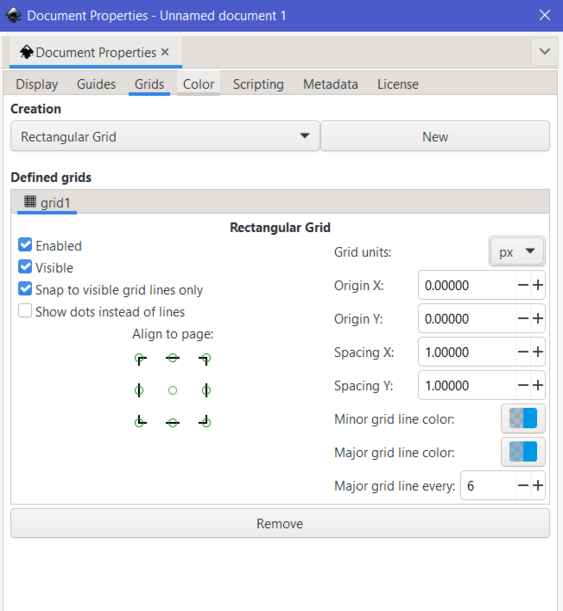
- Close the Document Properties dialog.
- To center the canvas in the viewport, select
View > Zoom > Drawing.
Set up paths
- Create a path or shape.
- With the path selected, press
Ctrl+Shift+Fto open the Stroke and Fill panel.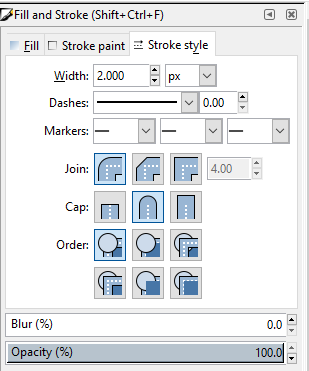
- On the Stroke Style tab:
- Set stroke width to
2px. - Select the rounded join type.
- Select the rounded cap type.
- Set stroke width to
- For rectangles, select the rectangle and set
RxandRyto2pxin the toolbar.
Save a file
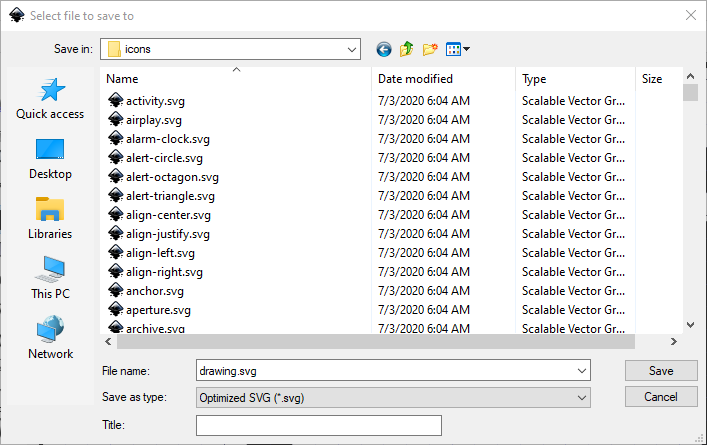
- When you are ready, click Save As and choose Optimized SVG as the file type.
Optimize your icon
As a final step, optimize your SVG with Lucide Studio.